A real slide editor
Text, images, video, shapes, QR codes, widgets and Apple Pencil drawing. Layers, snapping, undo, and Cut or Fade transitions.
A built-in contrast check flags text below 4.5:1, and images carry VoiceOver labels.

Digital signage for Apple TV
Signage that runs itself, on the Apple TV you already own. Design on iPhone, iPad or Mac, then publish to one screen or every screen.

Motion is off to match your device preference. Choose a message, or press Play.
Made for small businesses, schools, churches and offices.
Panequill Player is a free Apple TV app. It fills the screen with your content and keeps its controls out of the way until you press Select.
Your message gets the whole screen.
Illustrative player previewFeatures
Start from 60 templates for schools, churches, restaurants and offices, add your photos and video, and drop in live widgets like weather, calendars and menus.
Text, images, video, shapes, QR codes, widgets and Apple Pencil drawing. Layers, snapping, undo, and Cut or Fade transitions.
A built-in contrast check flags text below 4.5:1, and images carry VoiceOver labels.
Fifteen each for School, Church, Office and Restaurant & Retail. Or start from a blank slide, or import a slide pack.
Full Screen, L-Bar, Main + Ticker, Two Up and Three Zones — one playlist per zone. Landscape or portrait.
Time slots by day and hour, with date ranges and priorities. A default layout plays whenever nothing else is scheduled.
Add from Files or Photos. Video is converted for Apple TV, with WebVTT or SRT captions and an option to keep 4K.
Each Apple TV plays from its own saved copy when the network drops, and catches up within a minute of reconnecting.
The Panequill app
Manage everything from iPhone, iPad or Mac. See each screen’s status at a glance — Online, Playing, or when it was last seen — and get a notification if one goes quiet.
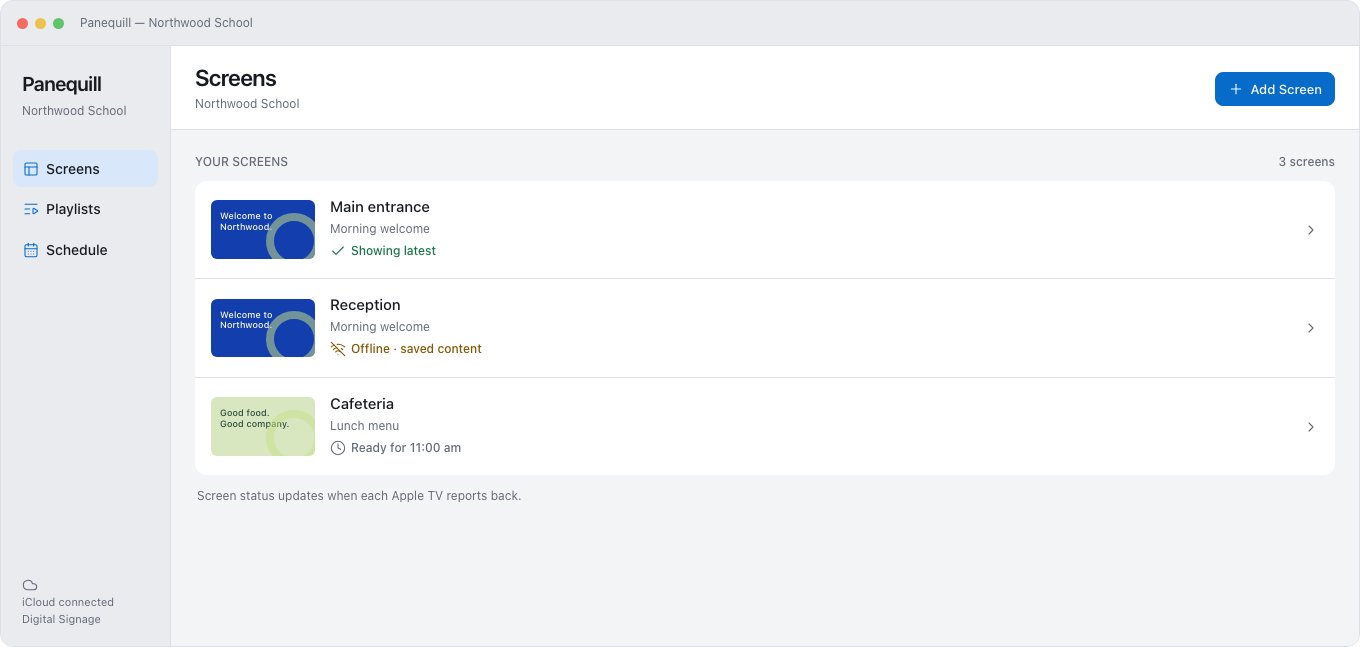
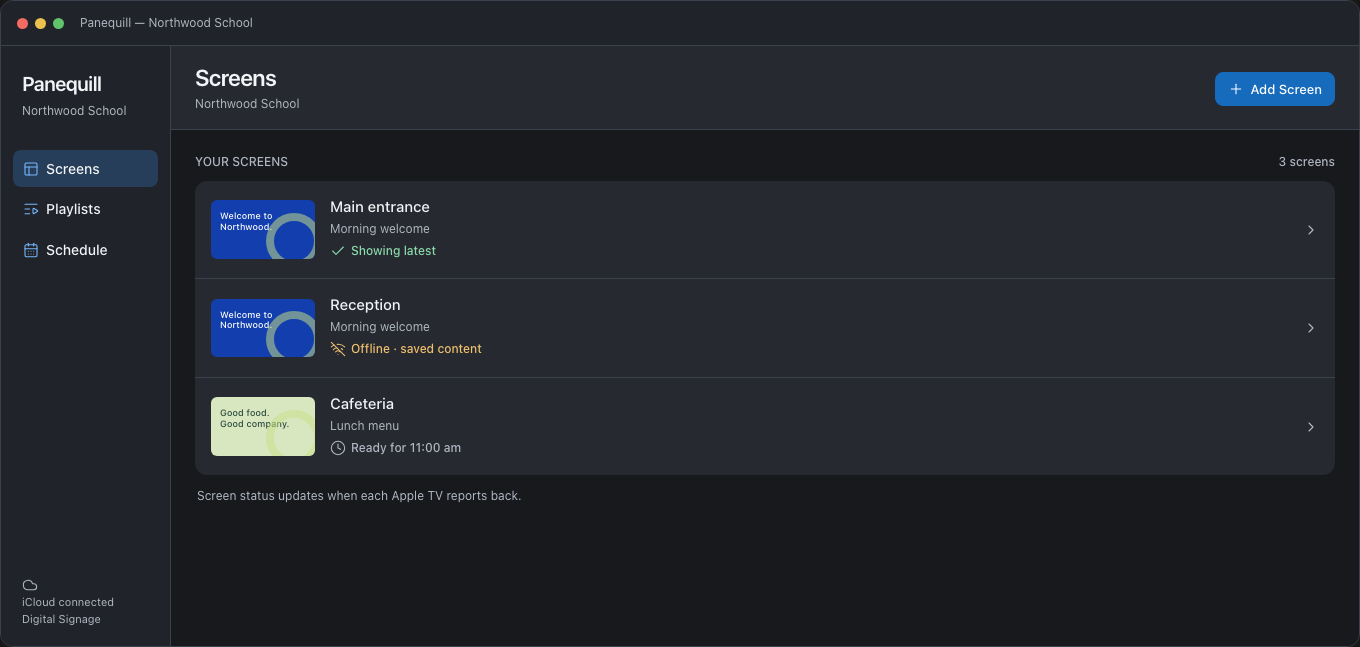
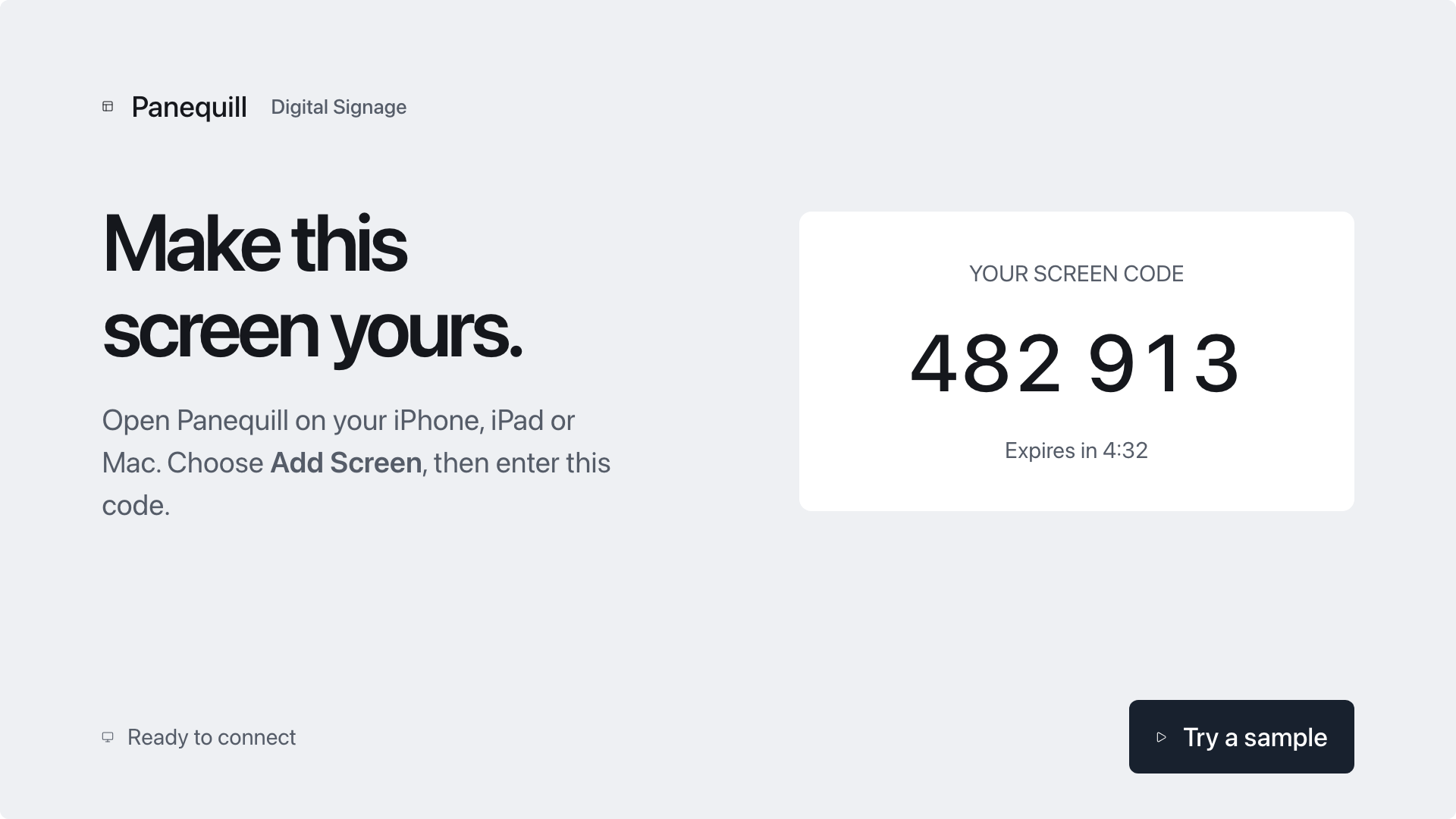
Three steps — and nothing to set up on the TV itself.
Pick a template or start blank. Add your photos, video and live widgets.
Open Panequill on the Apple TV and type the code it shows into this app. No cables, accounts or settings on the TV.
Schedule what plays when, publish to one screen or every screen, and Panequill keeps playing even when the network drops.
Panequill Business
When a school, church or office runs many screens, Business adds the tools for doing it together — and for the moments that matter most.
Emergency alerts
Choose Lockdown, Shelter in Place, Fire, Severe Weather or a custom heading. Send to every screen, a group, or a single screen, for 15 minutes up to 24 hours.
Panequill alerts add to, and never replace, your official emergency notification systems.
Proof of play
Export a CSV of every play — screen, start time, seconds and content — for up to 93 days at a time.
Team roles
Owners manage the plan and the team. Editors manage screens, publish and send alerts. Viewers see screens and reports.
A daily menu. A seasonal special. Give the people at your counter something worth a second look.
Illustrative spaces, made to show the possibilities.
Plans
Plans belong to your organization, not to one person. Paid plans come in packs of 1, 3, 5, 10 or 25 screens, billed monthly or yearly through the App Store.
Try it on a real screen.
Your brand, on every screen.
For schools, churches and teams.
Pricing for each screen pack will be listed in the App Store. Panequill Player on Apple TV is always free, with nothing to buy on the TV.
For IT
An Apple TV running tvOS 18 or later for each screen, and an iPhone or iPad on iOS 18, or a Mac on macOS 15, to manage them.
Open Panequill Player on the Apple TV. It shows a six-digit code. In the Panequill app, choose Add Screen, enter the code and a name, then confirm on the TV with the remote.
The screen keeps playing what it already has saved. When the connection returns, it catches up within a minute.
Yes. Quick Sign on the Apple TV lets you set a message, background and clock with just the remote. It shows only on that Apple TV.
Panequill plays on Apple TV only. Apple TV handles about three videos at once smoothly, so layouts top out at three zones.
The organization’s owner buys the plan in the Panequill app on iPhone, iPad or Mac. It then covers the whole organization’s screens.
In the app, choose More, then Delete Account. Your account is removed, organizations that only you belong to are deleted, and their screens are disconnected.
Email us at [email protected].